How to publish
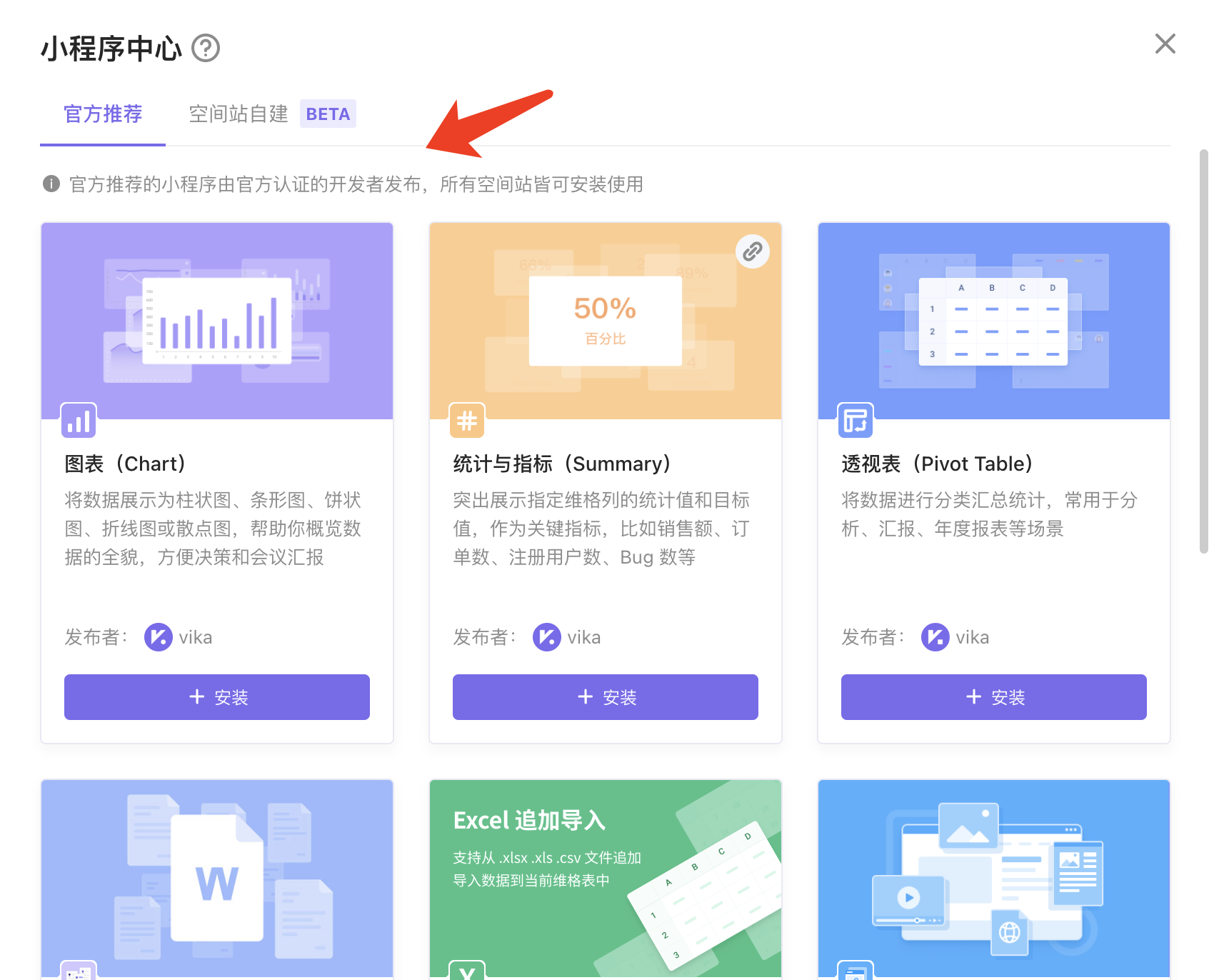
When your self-built widget is validated in your team's space, you can apply to place your widget in the "Official Recommendations" section of the widget center.
What is the "Official Recommendations"?
The "Official Recommendations" wdiget is published by the official certified developer and can be installed on all space.
How to publish
For a widget that has never been published, developers are required to review and publish it as follows.
| Stage | Content to Review |
|---|---|
| Qualification registration | Review the developer's qualifications and obtain the contact information of the relevant person in charge, usually feedback the results within 3 working days |
| Prepare a planning book | Confirm the rationality of the plan for the widget, and cooperate to optimize the relevant plan, usually feedback on the result within 3 working days |
| Development | - |
| Add widget homepage | Help users understand the value and usage of widget through help documents, and usually give feedback within 3 working days |
| Publish | Review the widget according to the above-submitted plan and the widget homepage to judge whether it meets the listing standards and related communication matters, and usually feedback on the results within 3 working days |
👇Here are more detailed step-by-step instructions:
Step 1: Form registration for developers
If you are a personal developer, fill in form Personal Developer Qualification Registry
If you are a business, a government, etc. please fill out the Corporate Organization Qualification Register
There are two possible results after review:
- Approved, you will receive an email that has globalPackageId.
- Failed, you will receive an email which have reasons, you can resubmit after the requirements are required
At the same time, at this step, we will have a dedicated business matchmaker to communicate with you. Please note that the contact information you fill in must be authentic and valid.
Step 2: Completing the writing of the widget plan
After the review is completed, the Widget plan proposal can be prepared. This step is mainly to confirm the rationality of the widget plan, and to reduce unnecessary misunderstandings and communication costs.
After finishing writing, please send this document to the corresponding business contact person, and we will review the relevant content as soon as possible.
Step 3: Development
After passing the review of the proposal, you can start to develop the widget. Please check the API Reference document here.
Before submitting the review of your widget, please check your widget based on the checklist before publishing .
If this requirement is not met, please submit it for review after modification.
Step 4: Publish homepage about your widget in Communities
The home page is equivalent to help documents and discussion forums to help users understand the value of your widget, how to use it, what common FAQ is available, etc.
If it is a widget released as an enterprise organization, please note that the nickname and avatar of the widget homepage are consistent with the corporate organization (or brand).
The reviewer will test your widget against the homepage you have submitted. Please write the homepage based on the template content. Otherwise, you may be asked to go back!
Append:Homepage reference:
Step 4: executes widget-cli submit to your _globalPackageID command, upload source compilation pack
In the first step, an email containing the unique globalPackageId assigned to the widget will be sent to your email when the developer's main credentials are successfully certified.
Note: each globalPackageId corresponds to a unique official recommended widget. Do not use a globalPackageId for multiple widgets.
Please follow the steps below to initiate widget review to the AITable:
Get globalPackageId from step 1 email
Go to the project folder of the widget, run
widget-cli submit to your _globalPackageIdFollow the command prompts to fill in the basic information about the publisher and the widget, such as publisher name, publisher avatar, homepage link, etc.
Submitcommand executes the message you fill in and the source compilation package will be uploaded to the apitableNote: The submit command will only upload the compiled package of the source code, not the source code.
Step 6: Submit the updated content of this version through the form
Each time you submit the widget via submit command, you will need to fill in widget information registration form for submission of updates for this version, including update types, update instructions, upload screenshots, etc. to facilitate moderation.
Step 7: Emails receiving review results
There are two types of review results:
Approved, you will receive the email of "The Widget has been successfully publishing", and we will automatically configure the widget to the "official recommendation"
Failed, you will receive an email with 'failed widget application' containing reasons for failure or suggestions for changes
Once you modify the widget, you will need to start again from [the fourth step](Step 4: executes
widget-cli submit to your _globalPackageIDcommand, upload source compilation pack) to performsubmitcommand and registration widget update to update
How to update
Assume that your widget has been added to Official Recommendations. You have recently supported new features or fixed a bug, and want to update the listed widget.
Please restart from Step 3 Development and submit for review by the process.
How to unpublish
If you need to unpublish your widgets. You can execute the following command:
widget-cli unpublish your_globalPackageId
You will receive an email notification when it is successfully unpublish.
Note: Users who have installed the widget can continue to use it.